MDashCam: Dashcam Recording with the Car's Own 4 Cameras on Chery and Omoda
 Mücahit Topal
I want to tell you about a project that I started for my own car and that later turned into a product when others driving the same car wanted it too: MDashCam.
The Chery Tiggo 7 Pro, Tiggo 8 Pro and Omoda 5 already have four cameras: front, rear, left and right. But the car uses them only while parking, for the 360 view; it does not record what happens on the road. Fitting a separate dashcam to the windshield and running a cable under the headliner is also a job most of us do not want to do. MDashCam turns the car's own four cameras into a dashcam: no extra camera, no cable, no device stuck to the glass.

How does recording work?
- Starts with the ignition: When you start the car, the four cameras begin recording at the same time; you do not need to press anything each time you get in. If you prefer, you can turn this setting off and start recording yourself.
- Four cameras in one video: The front, rear, left and right cameras are recorded together. When watching, you see all four together or one of them enlarged.
- Continues in the background: Recording goes on while the map, music or another app is open on the screen.
- The car's 360 is not affected: The reverse gear view, the 360 button and the views triggered by the steering wheel work the way you are used to; MDashCam records in the background at the same time.
- Where it records: To the car's own storage or, if one is plugged in, to a USB drive. When the space fills up, recording does not stop; the oldest recordings are deleted, so the most recent ones are always kept.
- Locking important recordings: You lock the recording you want to keep; when space is being freed, unlocked recordings are deleted first. When ABS kicks in, on a rear cross traffic alert while reversing, or on a driver fatigue alert, the recording at that moment is locked by itself.
- What is written on the video: You choose which of date and time, speed, location and gear information are written on the video.
- Audio: If you want, audio is recorded too with the car's microphone; this setting is off by default.
Live camera while driving
While on the move you can watch the cameras live on the screen: four cameras together, or the camera you tap in full screen. You can choose the image as fisheye (the widest angle) or corrected, and pan and zoom each camera's view with your finger. It is possible to check how close the front right wheel is to the curb in a narrow street, or to glance at the side camera before changing lanes.
When you use the turn signal, the camera on that side comes up on the screen by itself. Even when you are in another app, you can return to the cameras by tapping the small MDashCam button that stays on the screen.
Home page: your car in 3D

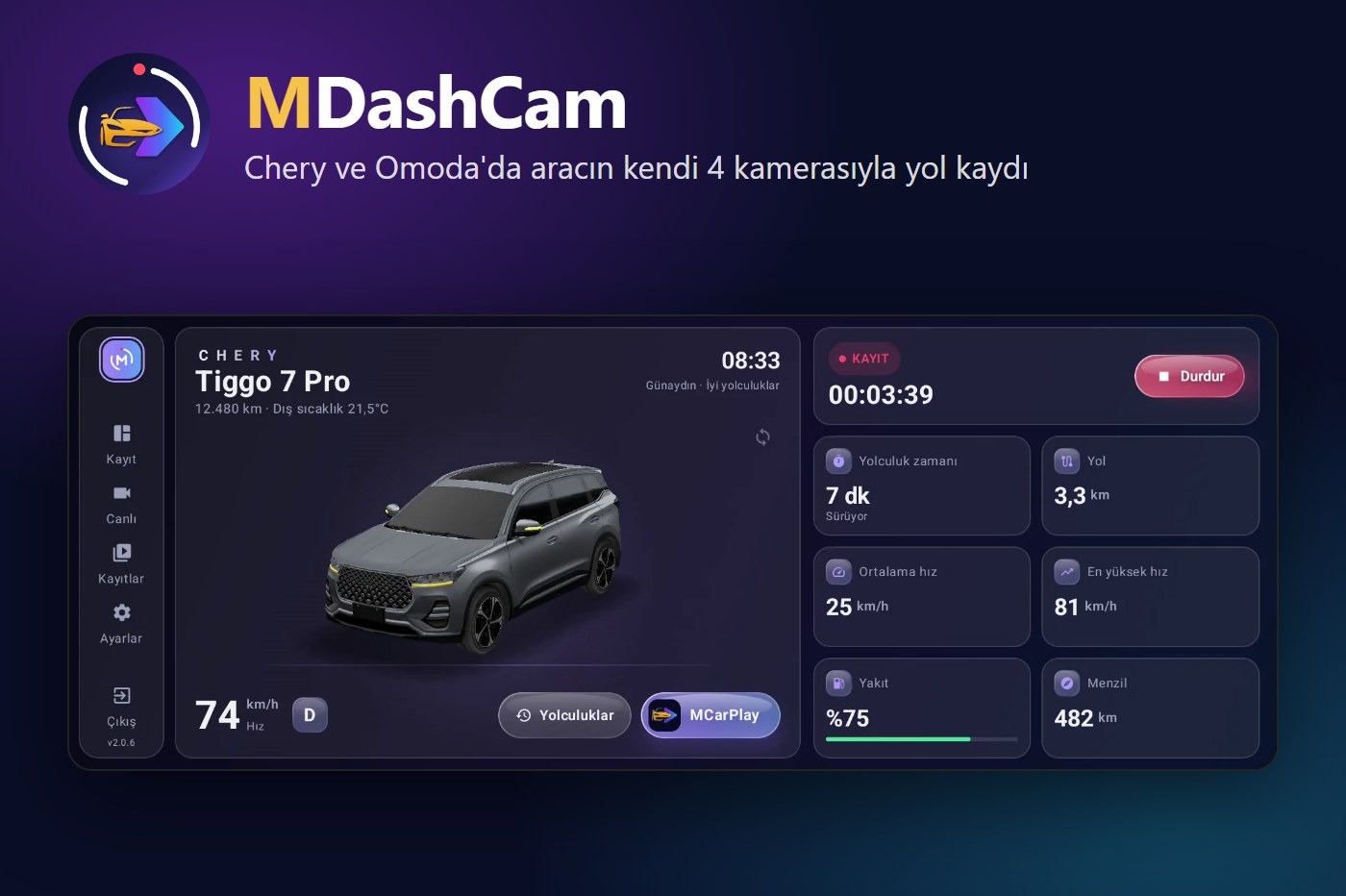
The home page that came with MDashCam 2.0 shows a 3D model of your car, in the color you choose and with the license plate you enter. You can rotate the model with your finger. When a door, window, the trunk or the sunroof is opened on the car, it opens on the model too; at a glance you see what has been left open.
On the same screen there are the current speed and gear, the recording time, the summary of this trip (duration, distance traveled, average and top speed), and the remaining fuel and range. If you want, the pressure of all four tires is shown on the model as well.
Windows, sunroof and trunk from the screen
You can tap a window, the sunroof or the trunk on the model to open or close it. If you select more than one window, they move together; you can stop the sunroof wherever you like. For safety, the trunk opens only while the car is stationary. For now this feature has been tested on the Tiggo 7 Pro; if you do not want it, it can be turned off in the settings.
Trip history
Every finished trip is stored with its duration, distance, and average and top speed. The route is drawn on the map and colored by speed; you can see where you drove slowly and where you drove fast. This information is stored only on the car's own screen; if you do not want it, you can turn trip recording off and delete the history with a single tap.
Climate, ambient lighting and more
With the latest versions a Features tab has arrived:
- Climate: Driver and passenger temperature, fan and air conditioning on one screen. You choose your summer or winter setting once; it is applied by itself every time the ignition is switched on.
- Ambient lighting: Choose the color and brightness. If you want, the color changes with speed or turns red while a door is open; at night the brightness is dimmed by itself.
- Windows and body: Put the sunroof in the vent position, or open or close all the windows with a single tap.
- Open apps: You can see and close the apps running in the background.
Climate and ambient lighting control varies with the car's model and equipment; on a car that is not supported, the relevant section says so.
Watching and getting the recordings

- On the car screen: From the Recordings section you watch, lock, delete or transfer them to a USB drive.
- From your phone: From your phone on the same Wi-Fi network as the car, without installing an app, you can watch and download the recordings and see the cameras live in the browser.
- From a computer: With the installation tool you can download the recordings to a computer in bulk. The recordings are MP4 videos that open everywhere.
The app has five themes; it can switch between the day and night themes by itself according to the car's light sensor. The interface is in Turkish, English, German, Arabic and Russian.
Which cars does it work in?
MDashCam is currently for the 2023–2024 Chery Tiggo 7 Pro, Tiggo 8 Pro and Omoda 5 (183 HP); your car must have the four-camera 360 surround view system. The Pro Max and Avantgarde versions and the models from 2025 onward with the new multimedia screen are not supported.
If you are not sure, you can run the "Is my car compatible?" check before buying. The check does not require a license, changes nothing in the car and shows the result in a few seconds.
Installation
You do the installation yourself, once per car. There are three ways:
- With a computer (Windows): You download the installation tool, connect the car with a USB cable and press Install.
- With an Android phone: With an OTG adapter plugged into the phone and a USB cable, you do the same thing from the phone; no computer is needed.
- From the browser: For those who do not want to download a program there is an installation page; it works on Mac and Linux too.
Installation takes a few minutes. Later updates come from inside the app; you do not need to connect a computer to the car again. If you want, you can remove MDashCam completely with the installation tool and return the car to its original state. For a step-by-step walkthrough: user guide.
What you need to know
There are a few things I want you to know before you buy:
- No long parking surveillance: After the ignition is switched off, recording can continue for at most 5 or 15 more minutes. Because the car's screen shuts itself down shortly after the ignition is off, parking recording that lasts for hours is not possible.
- No impact detection: Because the car's screen has no impact sensor, automatic locking at the moment of a collision cannot be done; the alerts I listed above (ABS, cross traffic, fatigue) do this job.
- No remote viewing: Viewing from the phone works only while it is on the same Wi-Fi network as the car; there is no remote connection over the internet.
- A USB drive is recommended: The car's own storage is small. For long recording I recommend using a durable 64–128 GB USB drive made for dashcams.
- Warranty: The installation makes changes to the software on the car's screen, and this may cause problems with regard to the manufacturer's warranty. Before going to the service center you can remove MDashCam completely and install it again when you get back.
- Trial and refunds: Because MDashCam is digital software, there is no trial version and no refund. That is why I recommend running the compatibility check and asking whatever is on your mind before buying.
- Independent software: MDashCam has no connection with Chery or the car manufacturer. The camera views are a driving aid; checking the mirrors and the surroundings is the driver's responsibility.
More
Details, the user guide and license information: mcarplay.com/mdashcam
For your questions: WhatsApp: +90 537 365 2868 or [email protected]. For real in-car footage and new features: YouTube, Instagram, TikTok, Facebook.
For those who want video, live TV and maps on the car screen, my other project: MCarPlay. The two can be used together in the same car.
Every comment and suggestion from people driving the same car shapes the app; I look forward to hearing your thoughts.
MDashCam,yol kamerası,araç kamerası,dashcam,Chery,Tiggo 7 Pro,Tiggo 8 Pro,Omoda 5,360 kamera,yol kaydı,yolculuk geçmişi,lastik basıncı,ambiyans ışığı,klima,Android,App,Program